Claude Design for App Design: 5 Lessons from a Developer’s Project
After getting hands-on with Claude Design, we discuss some practical lessons on how to rapidly iterate on UI design, manage growing design projects, and create icons.
When Claude Design launched, I was very curious. How powerful a tool would this be for developers that want to build apps? Creating designs and the implementation of a design are often big barriers for developers. There’s also the trap of launching things that very clearly look “AI-designed” which is easy to fall into.
In the pre-coding agent era, nailing the design for a production app often required a team of three: designer, frontend developer, and backend developer. The promise of agents has been that different agents can take on these tasks, but purely relying on Claude Code and Codex up to this point hasn’t really handled the designer tasks well.
So, I set out to use Claude Design to do a full design for an app I was using for some personal tasks. Here’s what I learned.
Claude Design is excellent for rapid app UI exploration
Claude Design is really good at this. Not only does it rapidly iterate on the interface layout and visual design, but you can structure the page so you can see all the different iterations side-by-side. Take the following prompt
create a new page called "Incomplete match". this page shows a new UI element on the main app screen when the input can’t be matched correctly and requires user input to manually correct the match.

make 4 options for this scenario.
Once you have the initial design, you can easily start exploring smaller aspects of the design:
Take design A and show me 4 options for how to indicate there is more than one incomplete match. Put these artboards on a new row.
Claude Design does not handle large numbers of artboards well
It is very tempting to use Claude Design as a design repository. Maintaining a visual log of the process you go through to arrive at a final design is generally very helpful, and something I was doing across multiple screens in my app.
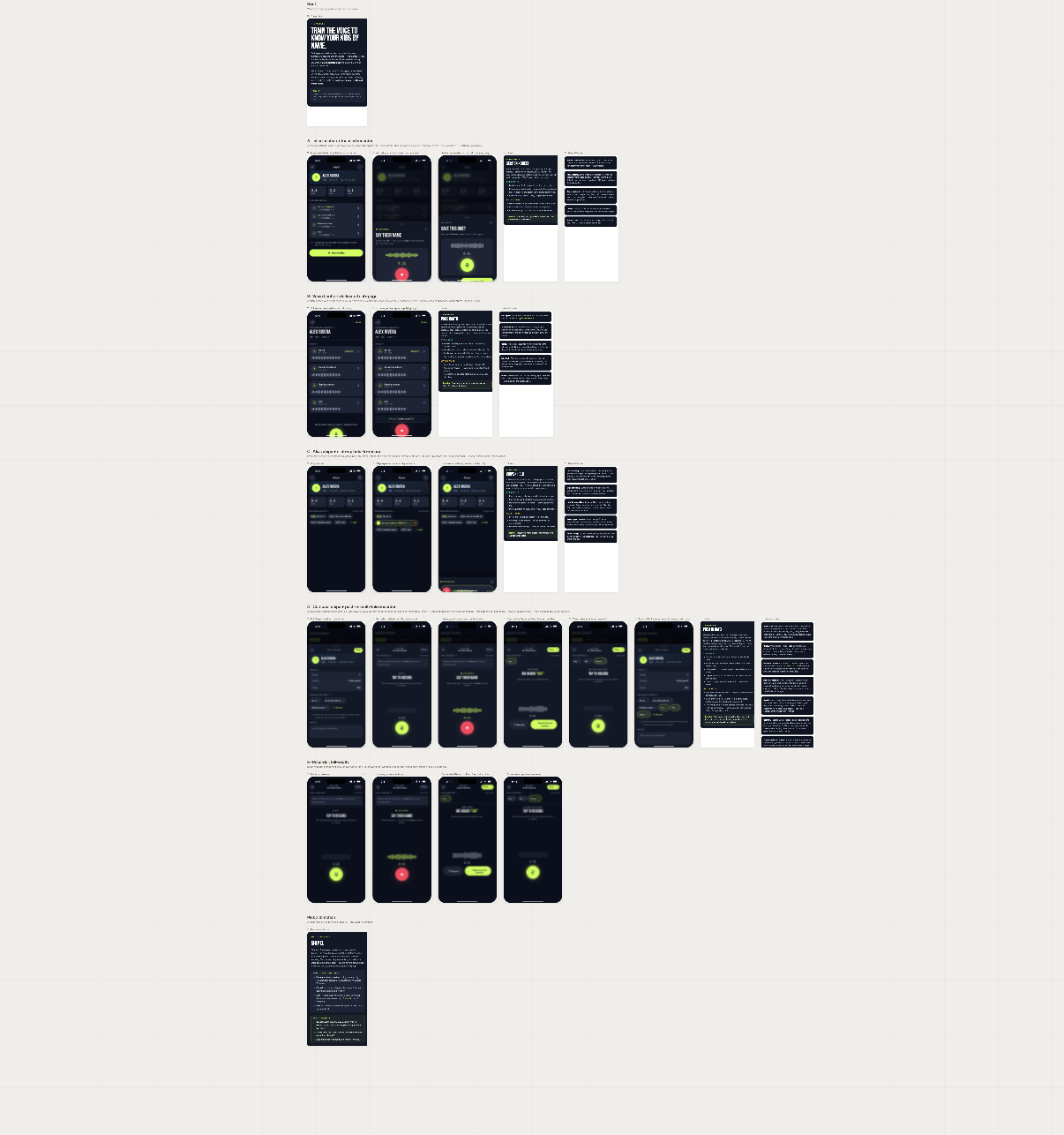
Here’s a small example where I ended up with about 20 artboards exploring one feature tweak. On a more complex screen I rapidly grew to over 100 artboards.
Example of feature exploration in Claude Design.
This is a very bad idea in Claude Design!
My entire project stopped loading in the Claude UI. The problem? The size of everything just got too large to load in the web browser. I almost lost access to the entire project.
Each artboard is actual React code. As your number of artboards grows, and each one is pulling in a lot of code. Adding more different exploration directions adds more code to the shared source files, and then each artboard is rendering all this code.
In order to keep Claude Design stable and running I learned a few key lessons:
If the number of artboards gets large before you get to a final decision, start deleting ones you’ve already discarded
Copy final decisions to new pages and delete the pages with large explorations
Clean up the React code in Claude Design when you’ve completed an exploration
Let’s look at this last point in more detail as it’s pretty important.
Clean up unused React code in Claude Design
After the first time I crashed Claude Design in the browser, when I finally got back in I started deleting artboards. Then I looked more carefully at what was going on with the underlying source code.
I’ve removed multiple artboards from the project. Review the source code and clean up any unused code that can be removed.
I forgot to save the results of the first pass at this, but it deleted multiple files and reduced the size of most of the remaining files by about 70%.
My standard workflow for this is now:
Create a new “feature-explorations” page
Iterate on design here
Copy the final artboard(s) to “feature” page
Manually delete the “feature-explorations page
Ask Claude Design to clean up unused code
In a recent smaller task the result of the clean-up was
Cleanup complete. Summary of this pass:

4 unused files removed.

src/PlayerSelectAfter.jsx — 1016 → 296 lines. Removed PlayerSelectP1/P2/P3 and their helpers (PlayerTileP1, SpecialRowP1, HeroBreadcrumbP2, PlayerRowP2, SpecialBigP2, ShortcutChipP3, oppTheme, OppGlyph). Kept the shipping PlayerSelectP3Final and its supporting components.
src/InlineB1Return.jsx — 243 → 105 lines. Removed ReturnBannerR2, ReturnMiniDockR3, ReturnCTAR4 and the returnStyle prop branching. Kept only the ReturnPillR1 (shipping) code path.
Manual Entry.html — dropped the now-unused returnStyle="pill" prop.
design-canvas.jsx (project root) — deleted; only src/design-canvas.jsx was being loaded.
Even in a relatively small project, these files grow very rapidly over time.
Claude Design struggles with icon design, ChatGPT is better
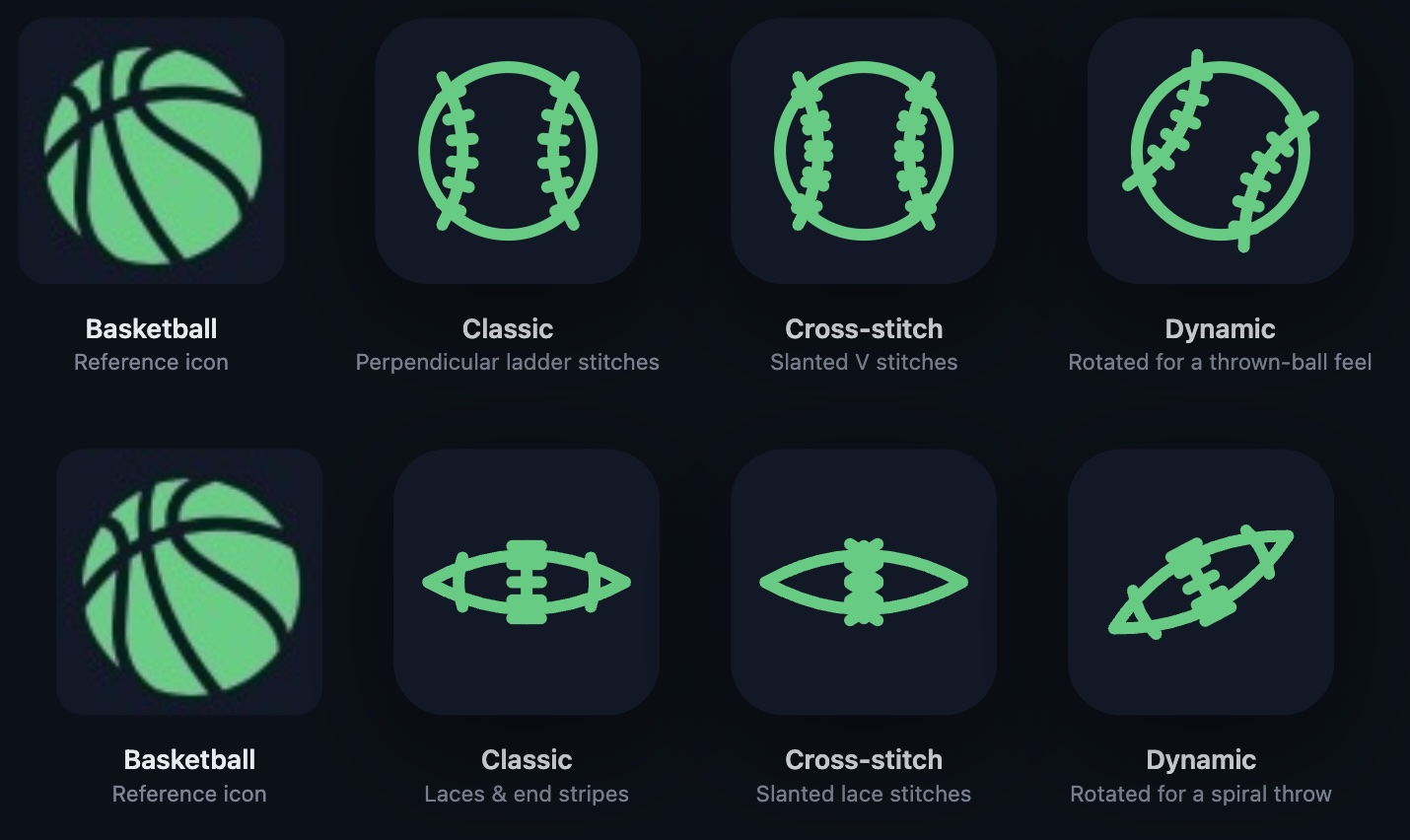
Claude Design has not figured out how to draw icons yet. Most attempts resulted in something that looks like it was drawn by a child. Here’s an actual example where I started with the basketball icon on the left and asked Claude Design to make similar icons for other sports.
Claude Design baseball and football icons in the style of the basketball icon.
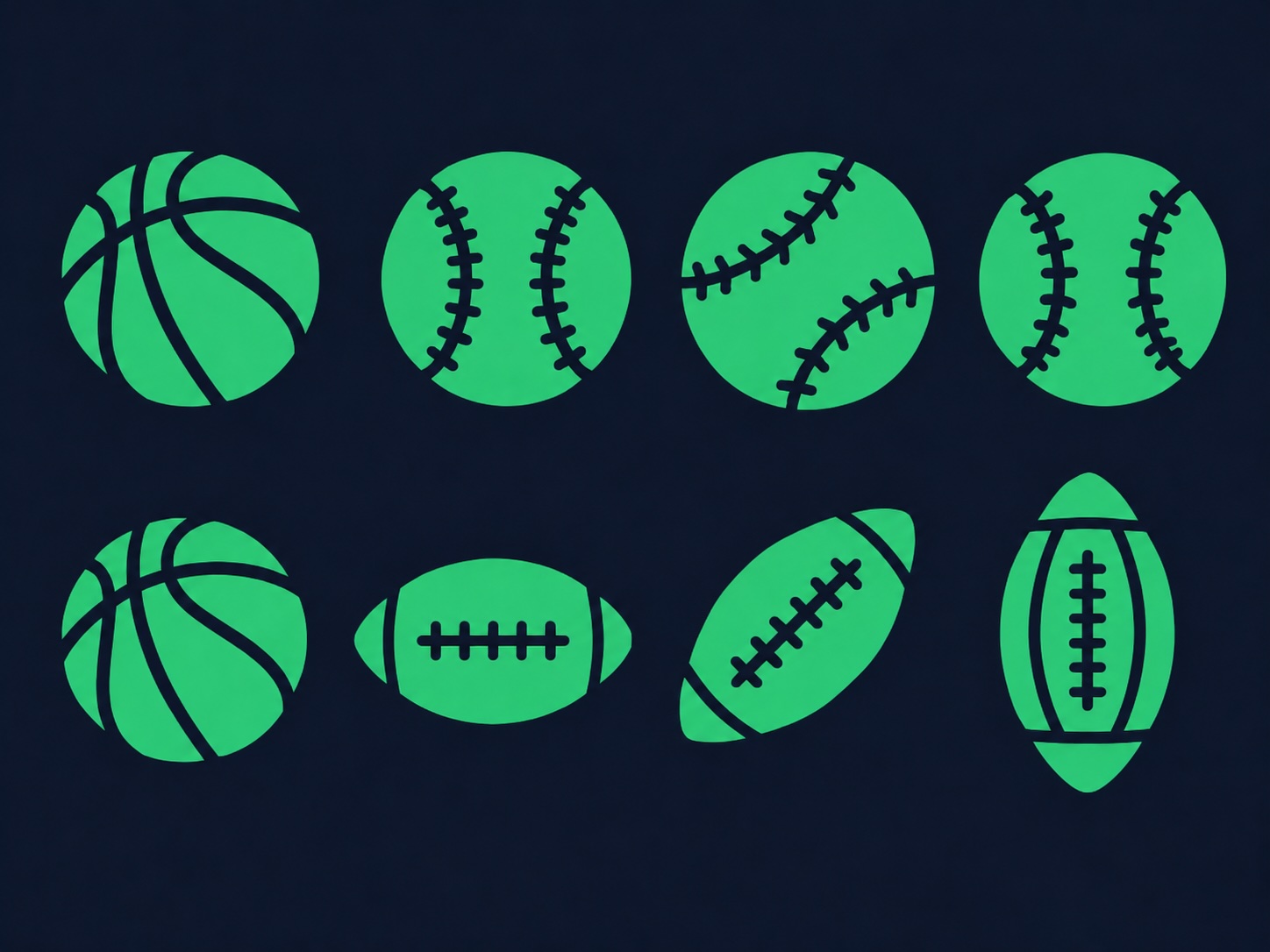
After several attempts and not really getting much better, I switched to ChatGPT which thanks to ChatGPT Images 2.0 does a much better job.
ChatGPT icons for baseball and football in the style of the original basketball icon.
ChatGPT for the win on this task.
Claude Code and ChatGPT can’t turn PNG icons into an SVG
In a real codebase, we don’t want a large number of PNGs for different icons. For performance, our preference is to have everything as a vector representation. Vector representations of icons also allow for quick color changes and other modifications as needed to match the app design.
This was an interesting challenge I didn’t expect. Once we had an image of the icon set that we liked, the next step was to turn them into SVGs or a native SwiftUI format.
Turns out Claude Code and ChatGPT can’t do this, at least not for anything other than very simple icons. The results are pretty bad.
I had to make a skill to handle this. It’s still not perfect. You often have to iterate with the skill. Taking the first output it produces, go into an image editor, circle the areas that are wrong and run again with feedback. With this usage loop, I’ve been able to faithfully replicate all my icons.
After several passes with this and tweaking the skill it is working fairly well even on the first pass. You can check out the Claude Code and Codex skill here.
What did we learn?
Claude Design is a pretty amazing tool for a developer that can’t tackle software design work all on their own. Many of the wrinkles above are things I’m sure will improve with time. What is clear is these types of tools plug a big gap in the software development lifecycle that coding agents alone don’t fill.
Alejandro Cantarero is an AI and technology leader that has been working at the intersection of AI and Software for over 15 years. His experience includes multiple startups and companies such as NVIDIA, IBM, Shopify and Tribune Publishing. He has a Ph.D. in Mathematics from UCLA.